
Create Dynamic Checkboxes
Introduction
Dynamic checkboxes are multiple choice fields that fetch their options from Salesforce in real-time. The data source can be a Salesforce object, a custom SOQL query, or a picklist field. You can add them to any Salesforce form ↗ created in Formcrafts.
Dynamic checkboxes are a great fit when you want users to visually browse and select from a set of Salesforce records — for example, choosing products from a catalog, selecting team members, or picking from a list of active accounts.
- Option images: Each option can display an image fetched from Salesforce, making it easy to build visual selection experiences like product pickers.
- Option description: In addition to a label, each option can show a description — useful for displaying extra context like a price, status, or account name.
- Allow multiple selections: You can allow users to select more than one option, with optional minimum and maximum selection limits.
- Dependent lookup: The data source can be made dependent on another form field. For example, show only the products that belong to the category selected in an earlier field.
Here is an example. The first field shows available options for Campaign Type, and the second field shows a list of active campaigns belonging to the selected type:
Basic setup
On your Formcrafts dashboard ↗ click on Add Form → Start from scratch. Enter a Form name and hit enter. This will create a new form.
You can also create a new form by clicking on Add Form → Use a Template and selecting a template. This would allow you to skip this step.
Add a multiple choice field to your form using the Add field button on the top-left corner of the form editor.
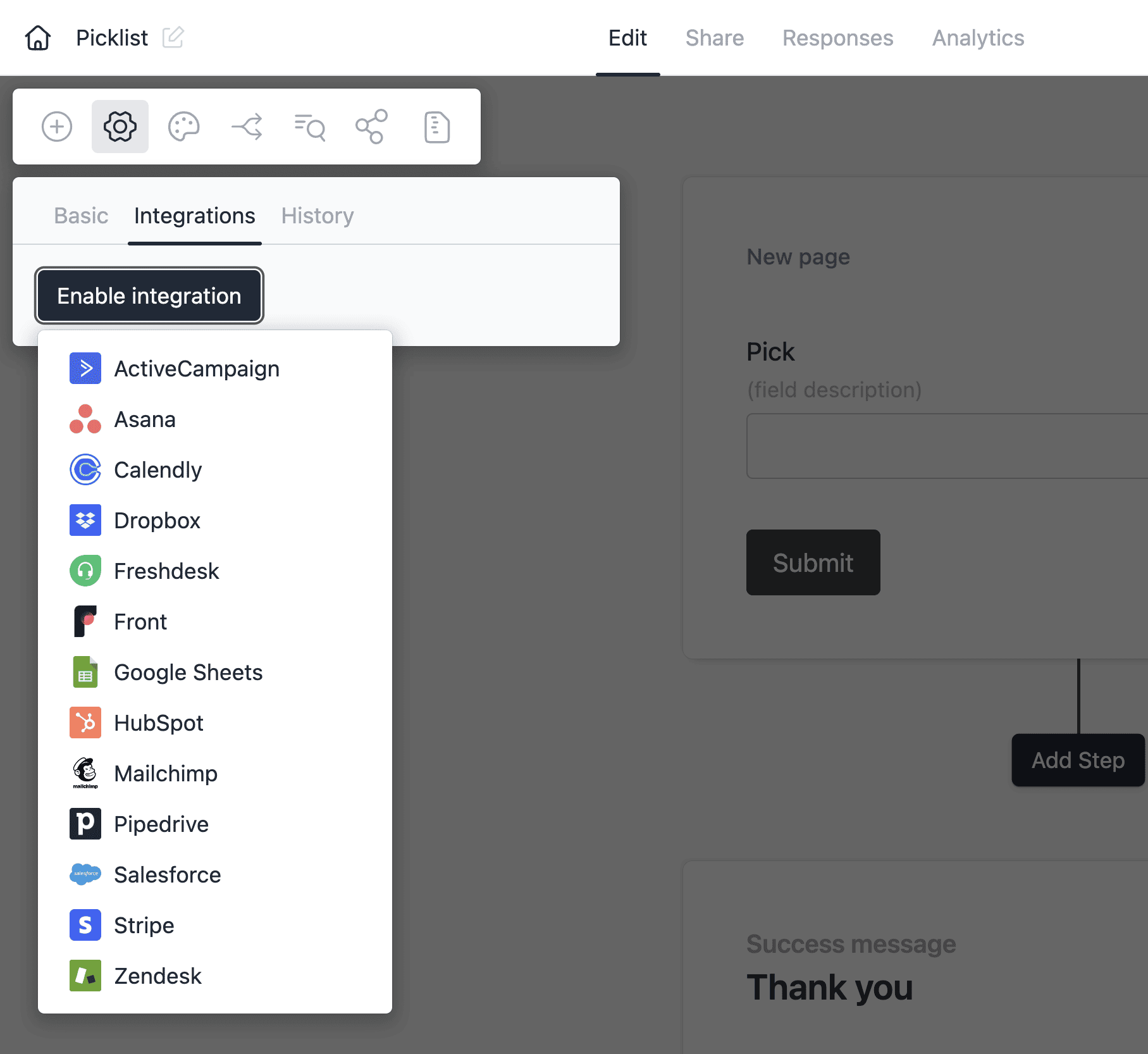
Next, enable the Salesforce integration for the form. Click on Settings → Integrations → Enable integration, find Salesforce, and connect your Salesforce organization.
Option sources
Click the cog button next to the multiple choice field to open the field settings. Go to Options → Source, and select Salesforce.
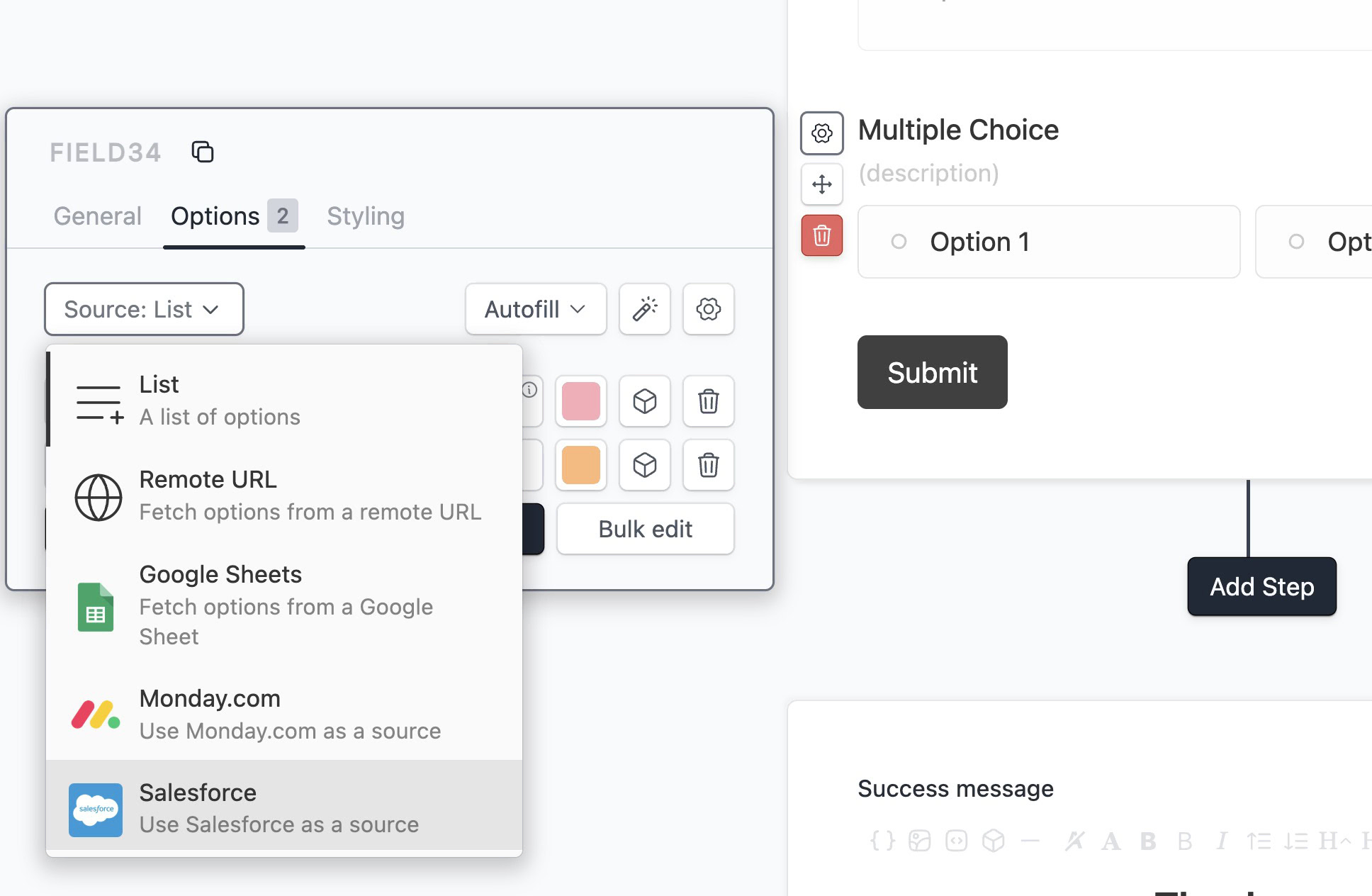
You can now choose the source type within Salesforce.
Source: Object
The object source fetches records from a Salesforce object. For example, select Campaign as the object and the field will display all your Salesforce campaigns as selectable options.
Column mapping — configure which Salesforce fields map to each option property:
Label (required): The text displayed on each option. For example, the campaign name.
Value (optional): The value submitted with the form when an option is selected. Defaults to the option label if left blank. In most cases this should be the record ID.
Description (optional): Additional text shown beneath the label. For example, a campaign description or status.
Image (optional): A URL field from Salesforce used to show an image alongside the option. For example, a campaign image.
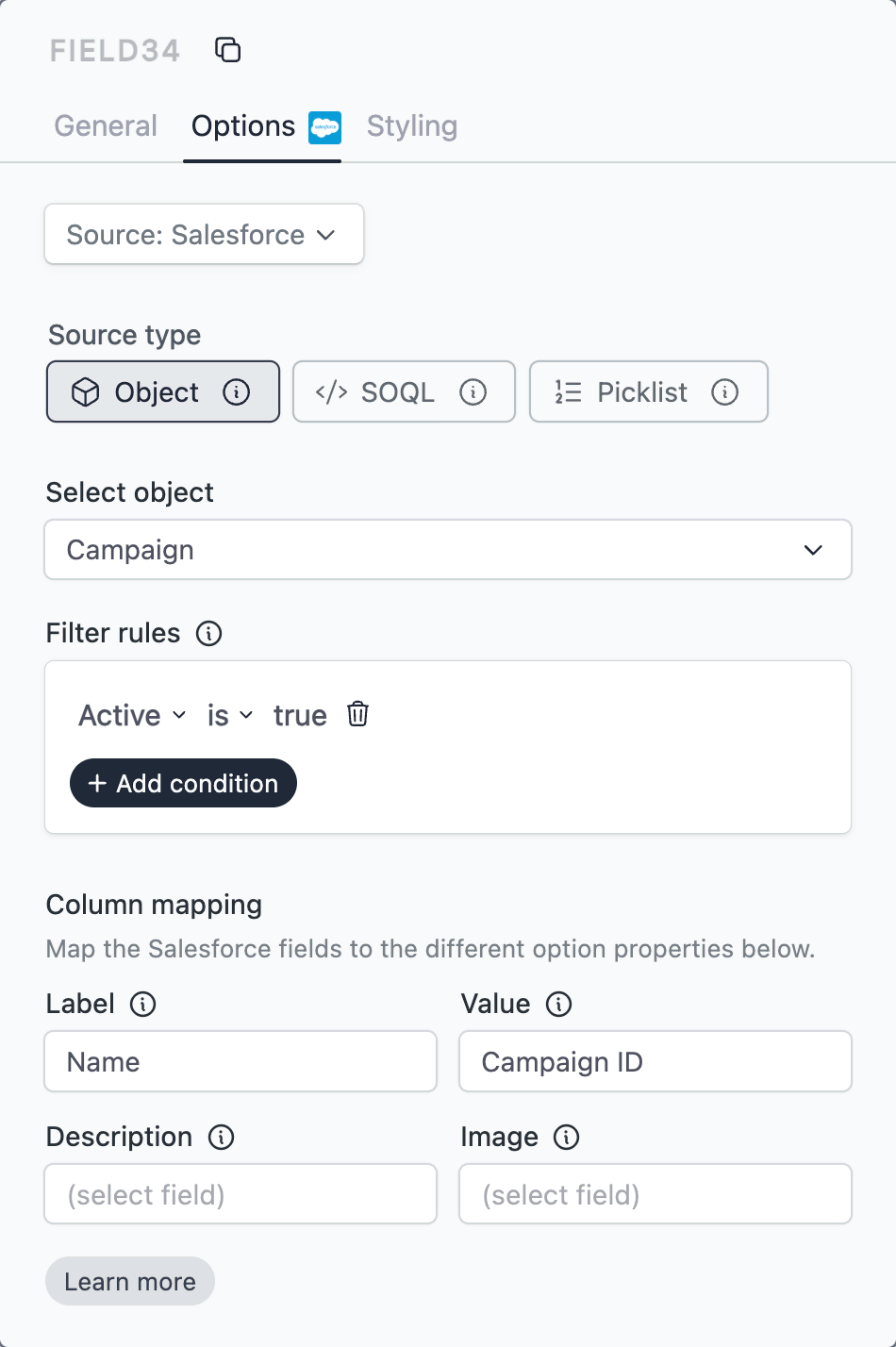
You can also add filter rules to limit which records are fetched. Filter rules allow you to reference other form fields, so the available options can update dynamically based on earlier field values.
Source: SOQL query
The SOQL source fetches options using a Salesforce Object Query Language query, giving you full control over which records and fields are returned.
For example, fetch a list of active campaigns with their names and statuses:
SELECT Id, Name, Status FROM Campaign WHERE IsActive = trueThe fetched columns can be used as the option’s label, value, description, and image. Refer to columns directly by name (e.g. Name) or combine them using curly braces (e.g. {Name} — {Status}).
Your query can also reference form fields to make the options dependent on user input. For example, fetch campaigns belonging to the type selected in a previous field:
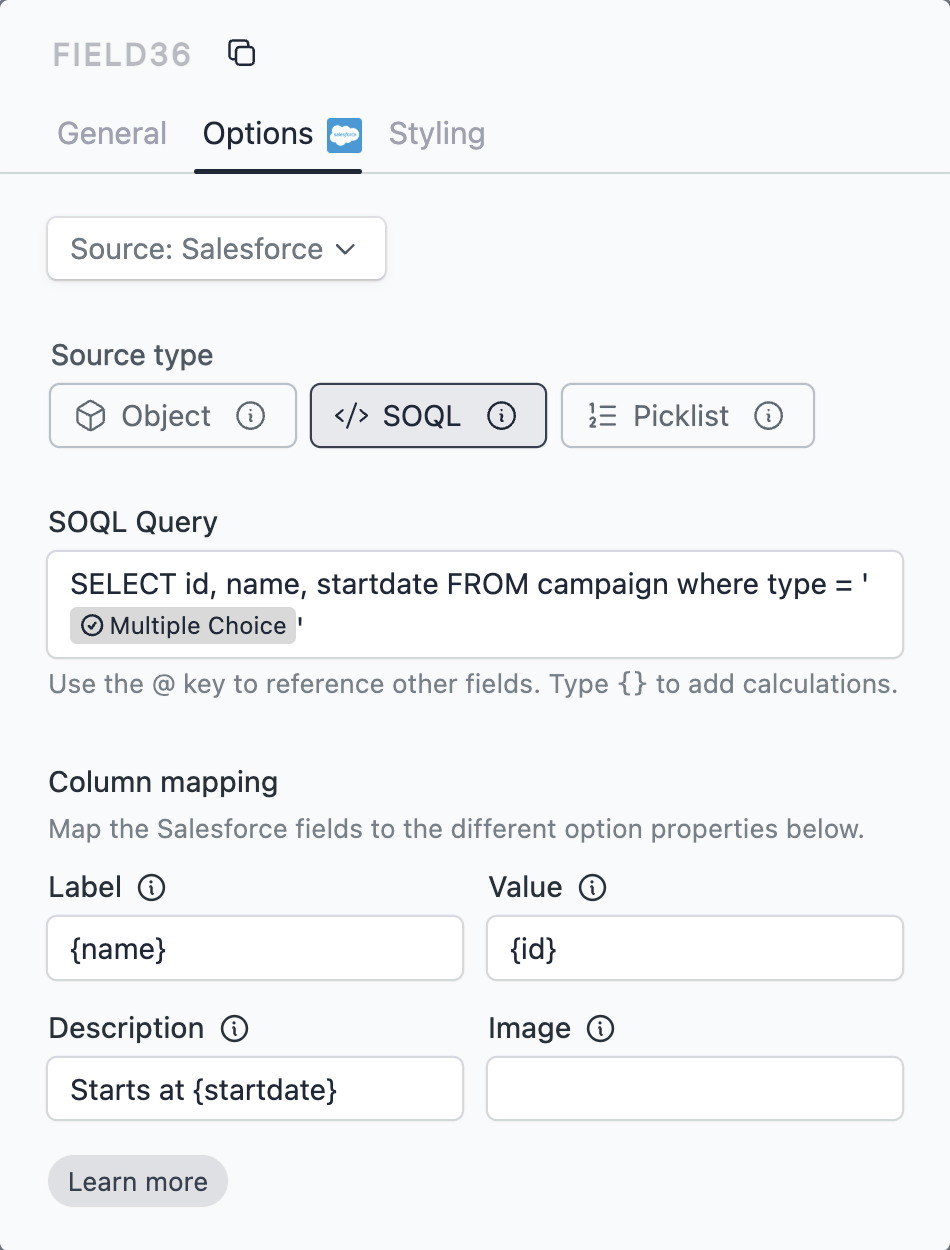
Formcrafts will watch the referenced field and re-fetch options whenever its value changes.
Source: Picklist
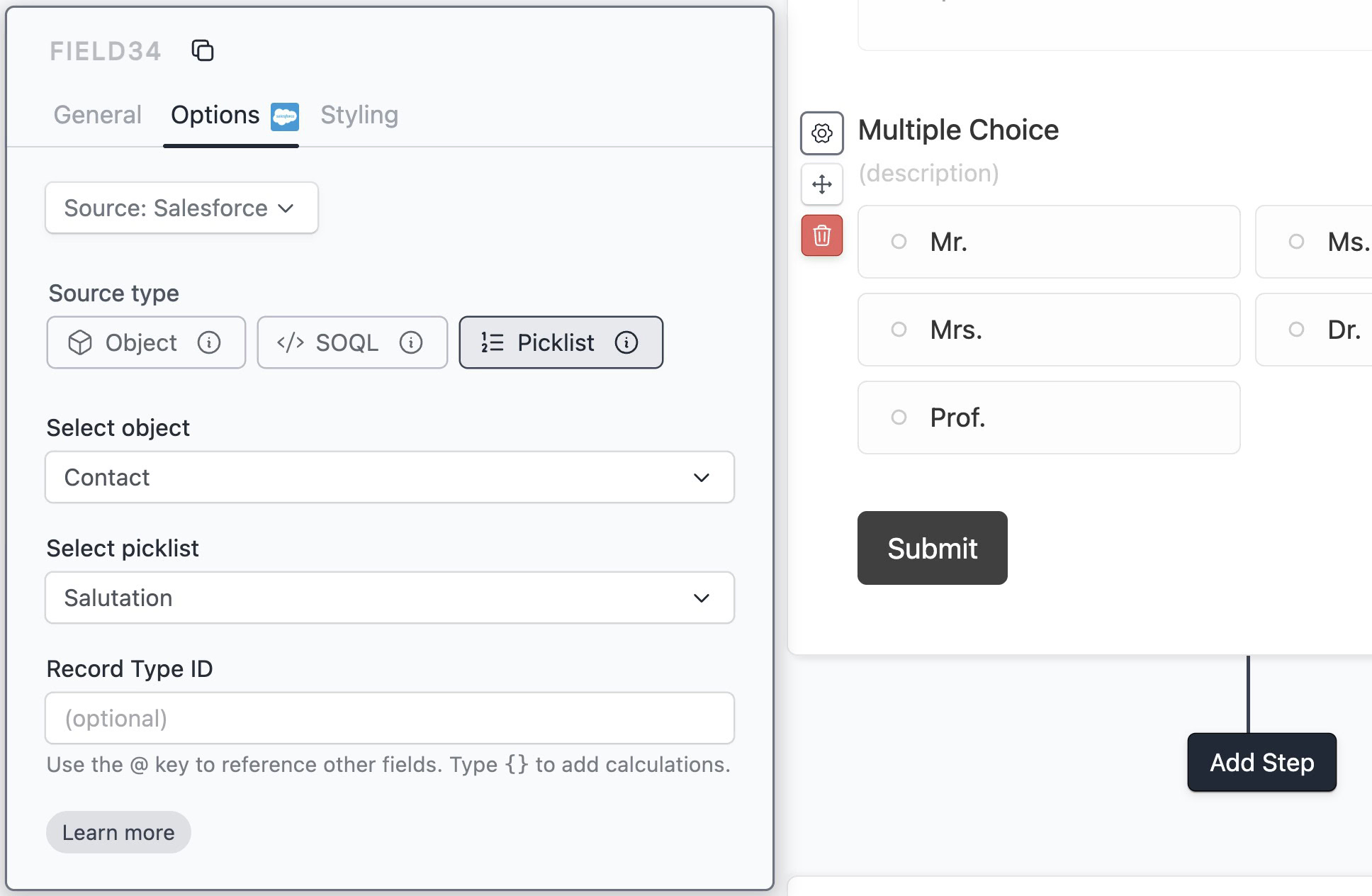
The picklist source fetches the available values from a Salesforce picklist field and renders them as multiple choice options. For example, fetch the values of the Salutation picklist field on the Account object.
Select the object and then the picklist field you want to use. The field’s picklist values will be fetched and displayed as the options.
The picklist source also supports an optional Record Type filter, which can be a static value or reference another form field.
Notes
Allow multiple selections
By default the multiple choice field only allows a single selection. Enable Allow multiple selections in the General tab to let users pick more than one option. You can also set a Minimum and Maximum number of selections to enforce a specific range.
SOQL format
The SOQL query is case-insensitive. Make sure the column names in your query exactly match the Salesforce API field names.
Dynamic checkboxes + form prefill
You can combine dynamic checkboxes with the Salesforce prefill feature. For example, pre-select the products already associated with a Salesforce record when the form loads. Learn more about Salesforce form prefill.