
Embed a Form in Salesforce Experience Cloud
Introduction
Salesforce Experience Cloud (formerly known as Community Cloud) allows you to create branded digital experiences (or websites). You can easily embed Formcrafts forms into your Experience Cloud sites.
This guide will walk you through the three main steps to embed your form in a Salesforce Experience Cloud website.
Step 1: Trusted Sites for Scripts
First, you need to configure your organization’s security settings to allow the Formcrafts script to load, via Setup.
- In the Quick Find box, search for Trusted URLs
- Click on New Trusted URL
- Enter
https://app.formcrafts.comin the URL field - Under CSP Directives select scripts, stylesheets, and iframe content
- Click Save
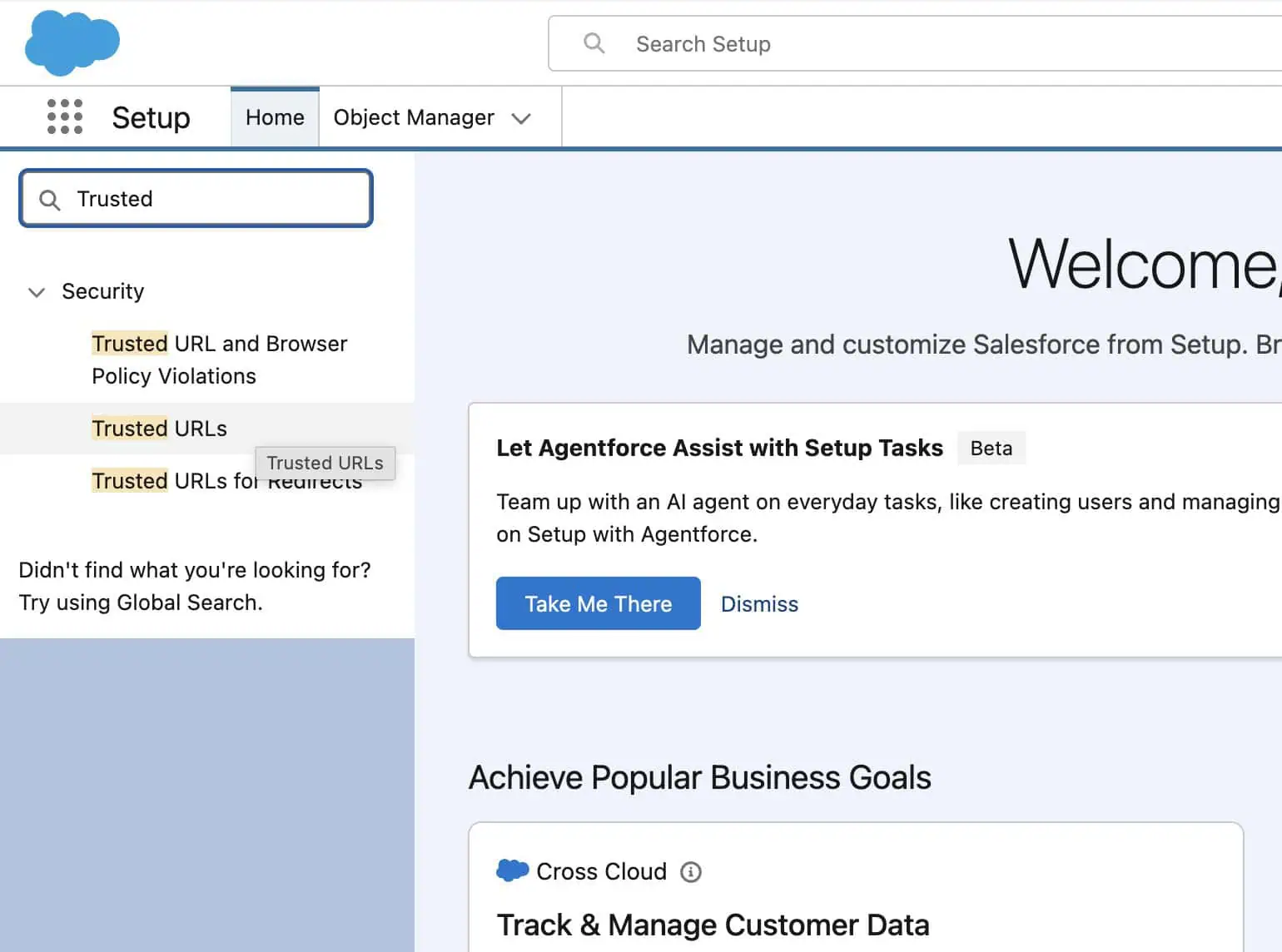
This step ensures that Formcrafts scripts can execute properly within your Experience Cloud environment.
Step 2: Add embed.js to Header
Next, you need to add the Formcrafts embed script to your Experience Cloud site header, via Experience Builder.
- Navigate to Settings → Security & Privacy
- Under Trusted Sites for Scripts click on Add Trusted Site
- Enter
https://app.formcrafts.comin the URL field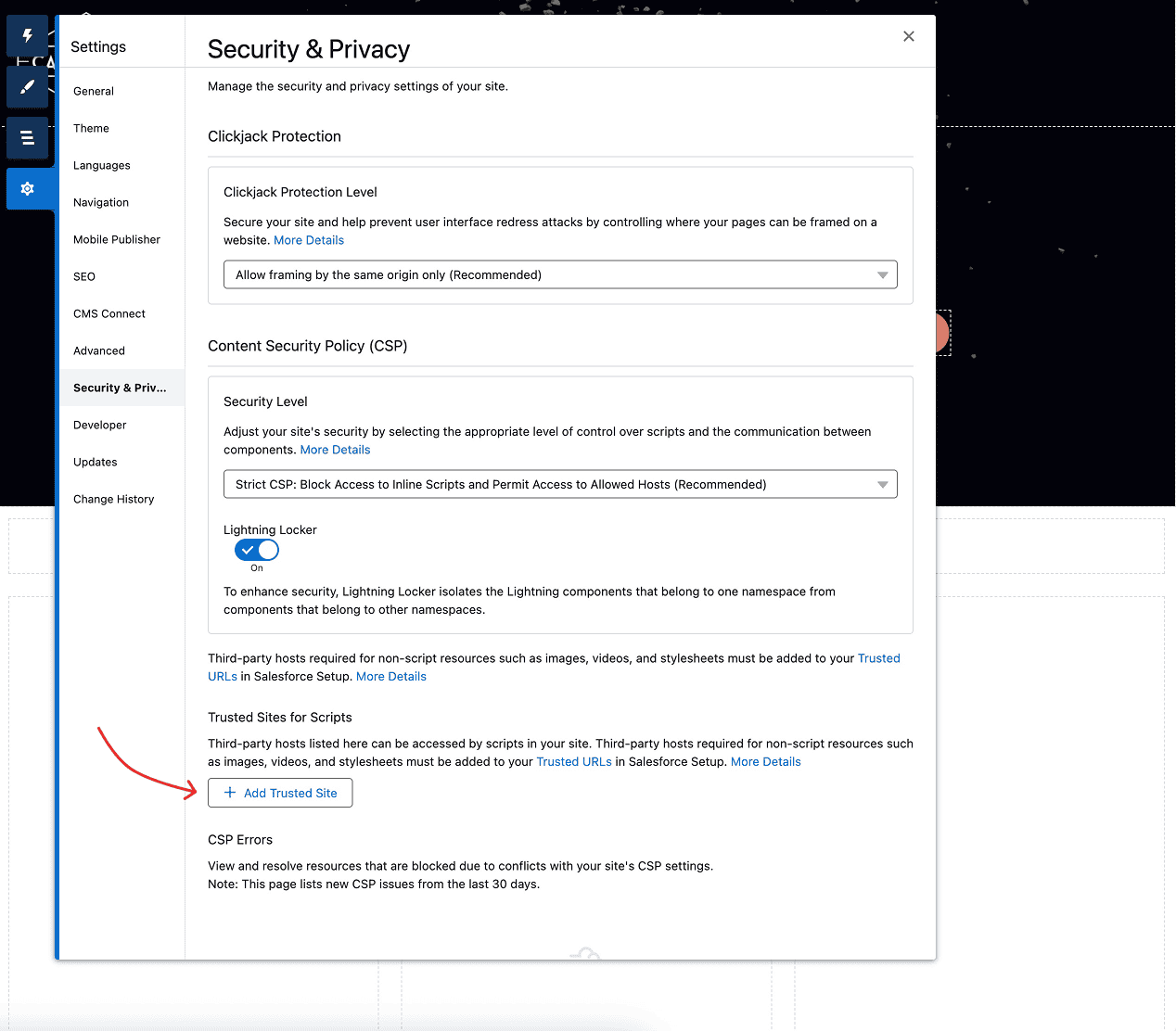
- Go to Settings → Advanced section
- Under Head Markup, click on Edit Head Markup, and add the following script tag:
<script src="https://app.formcrafts.com/embed.js"></script>- Click Save to apply the changes
This script enables the form embedding functionality across your entire Experience Cloud site.
Step 3: Use the Embed Code
We now have to grab the embed code. Please follow these steps to find the embed code for your form.
Copy the first half of the code (the div part):
<div data-fc-key="abcd1234" style="max-width:500px; height:600px"></div>Now, we will add this code to an HTML Editor component on your Experience Cloud page.
- Add an HTML Editor component to your Experience Cloud page
- Paste the
divpart of the embed code into the HTML Editor (via Edit Markup) - Click Save to apply the changes
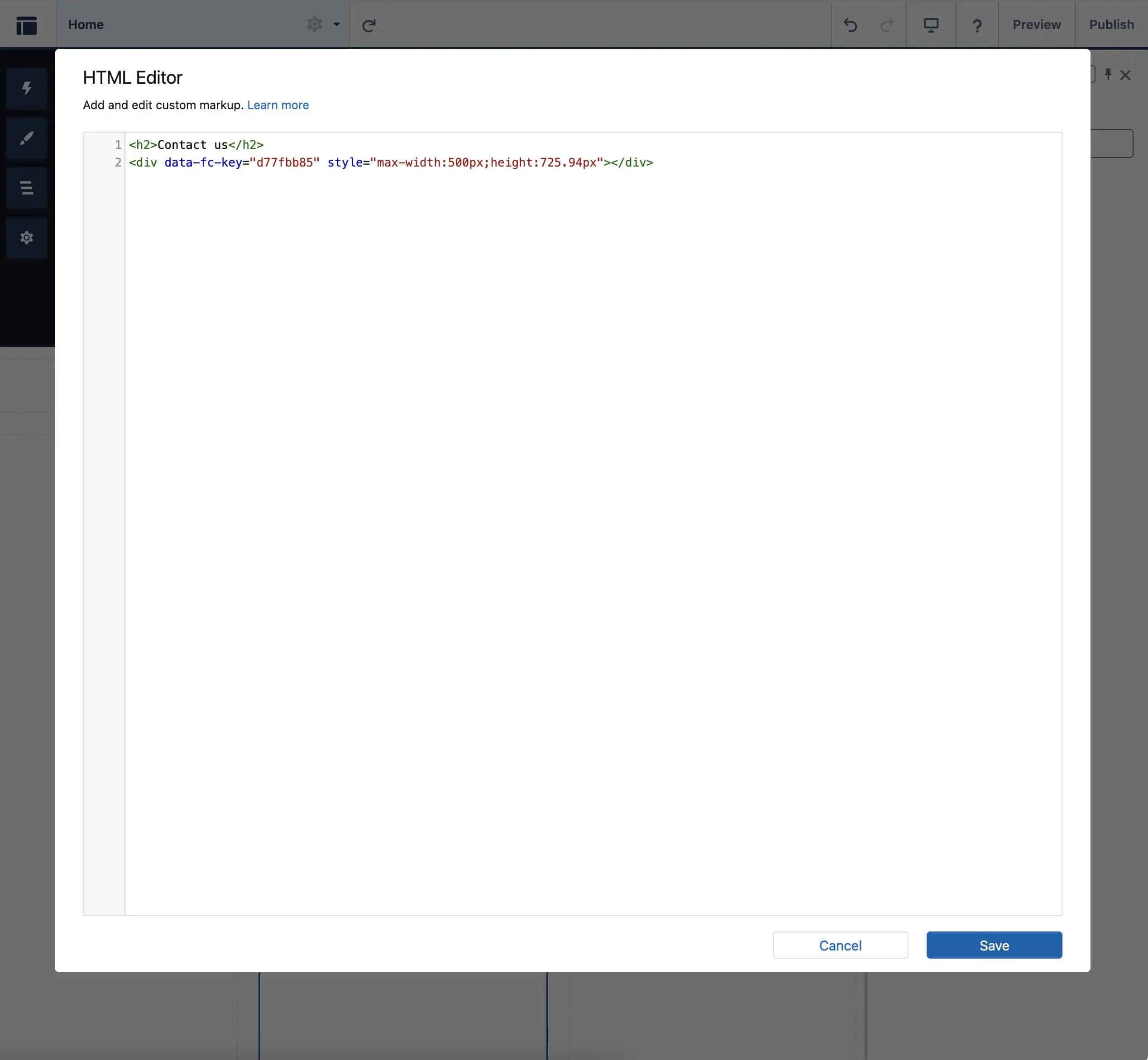
Advanced: Prefilling User Data
The Experience Cloud page already knows who the logged-in user is. You can leverage this information to prefill the form with the user’s Salesforce Id. Here is how:
- Use the form editor to add a hidden field to your form. This field will store the Salesforce User Id. Note the field Id (e.g. field20).
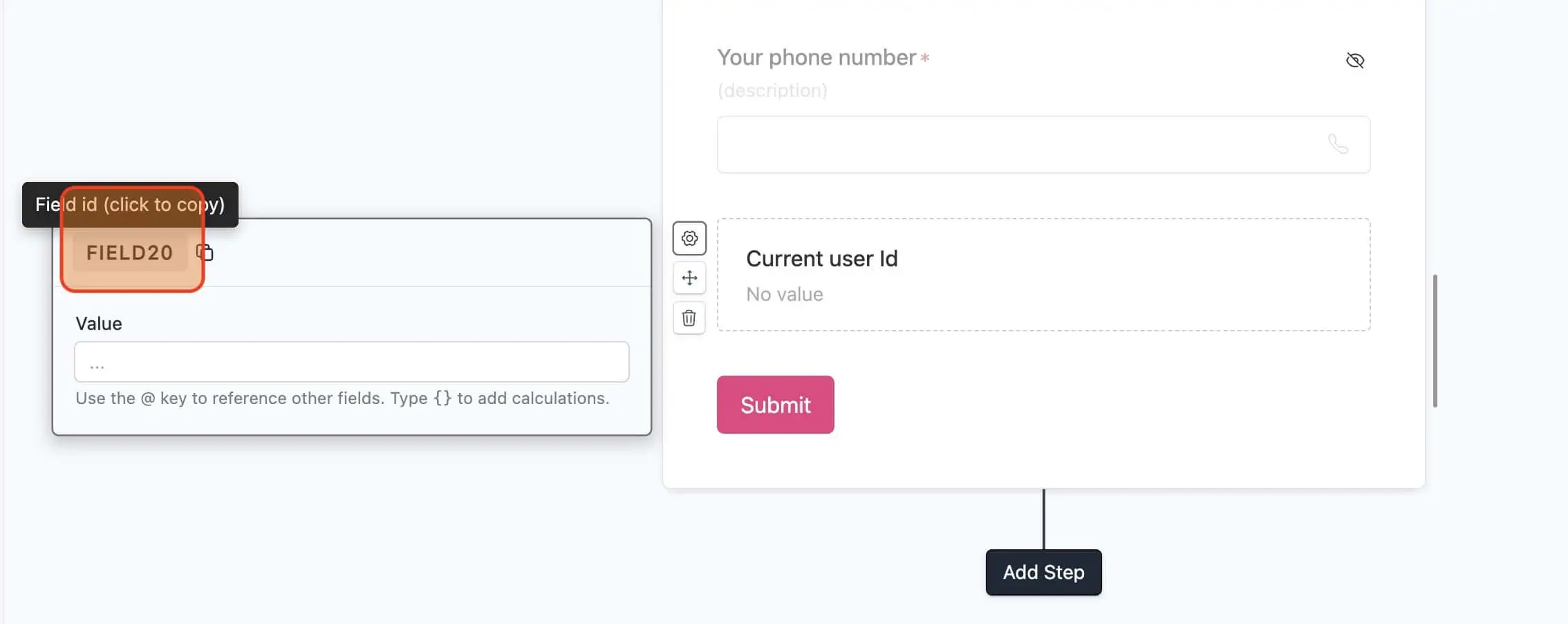
- Modify the embed code we used on the Experience Cloud page (from Step #3) to include a prefill attribute for the hidden field. The modified embed code will look something like this:
<div data-fc-key="abcd1234" data-fc-prefill-field1="{!CurrentUser.id}" style="max-width:500px; height:600px"></div>The {!CurrentUser.id} merge field dynamically inserts the logged-in user’s Salesforce Id into the hidden field. Now, you can use lookups to fetch more details about the user, or even related records. Learn more on Salesforce lookups.
Notes
- You can use Formcrafts’ fallback embed code as well. This will allow you to skip the first two steps. However, this is not recommended since certain features (like prefill, redirect, Google Analytics, etc.) may not work properly with the fallback embed code.