
Create multilingual forms
Introduction
With Formcrafts, you can easily create a form in one language (e.g., English) and then add translations for other languages—such as German or French—so your users automatically see the form in their preferred language.
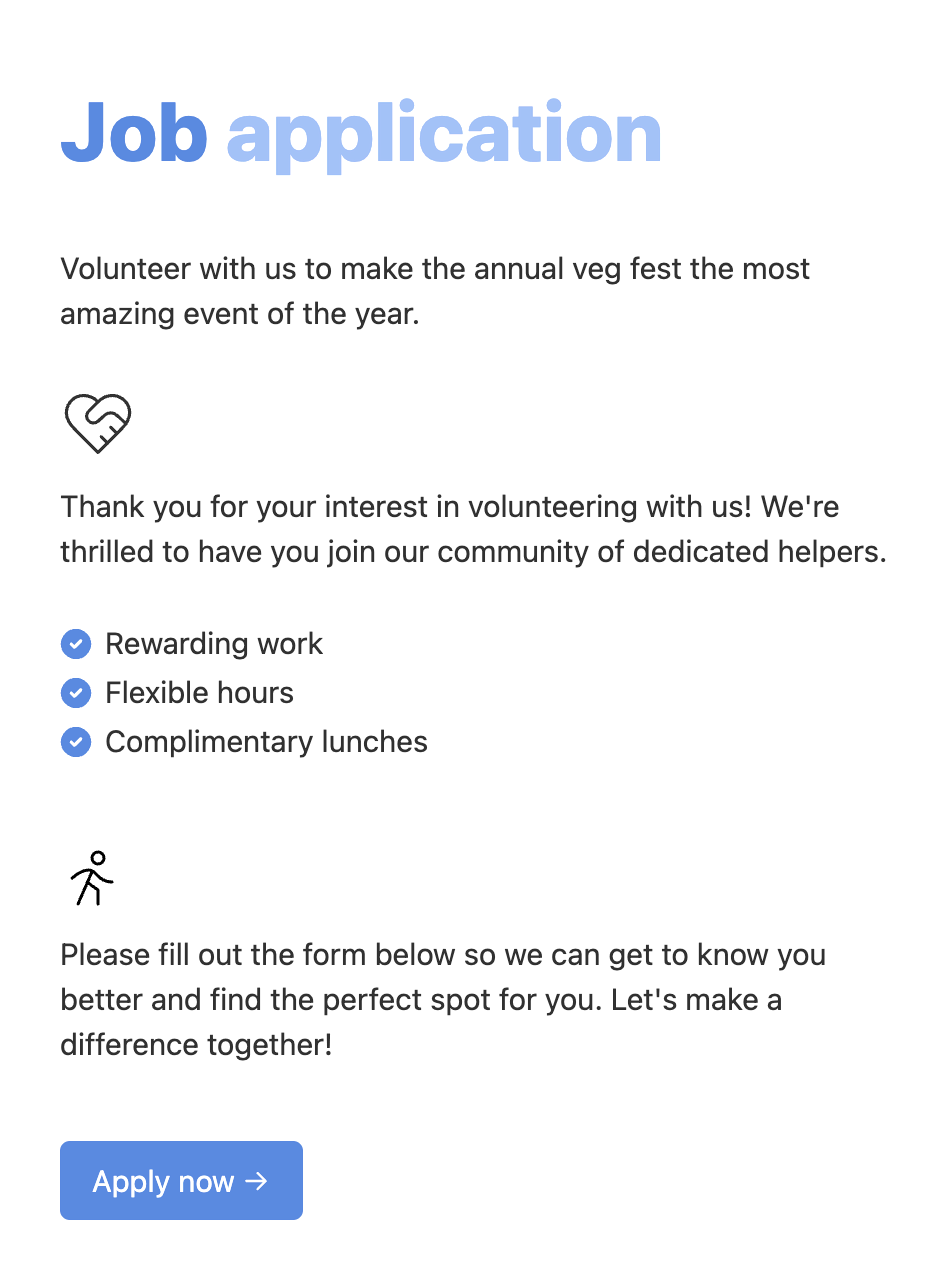
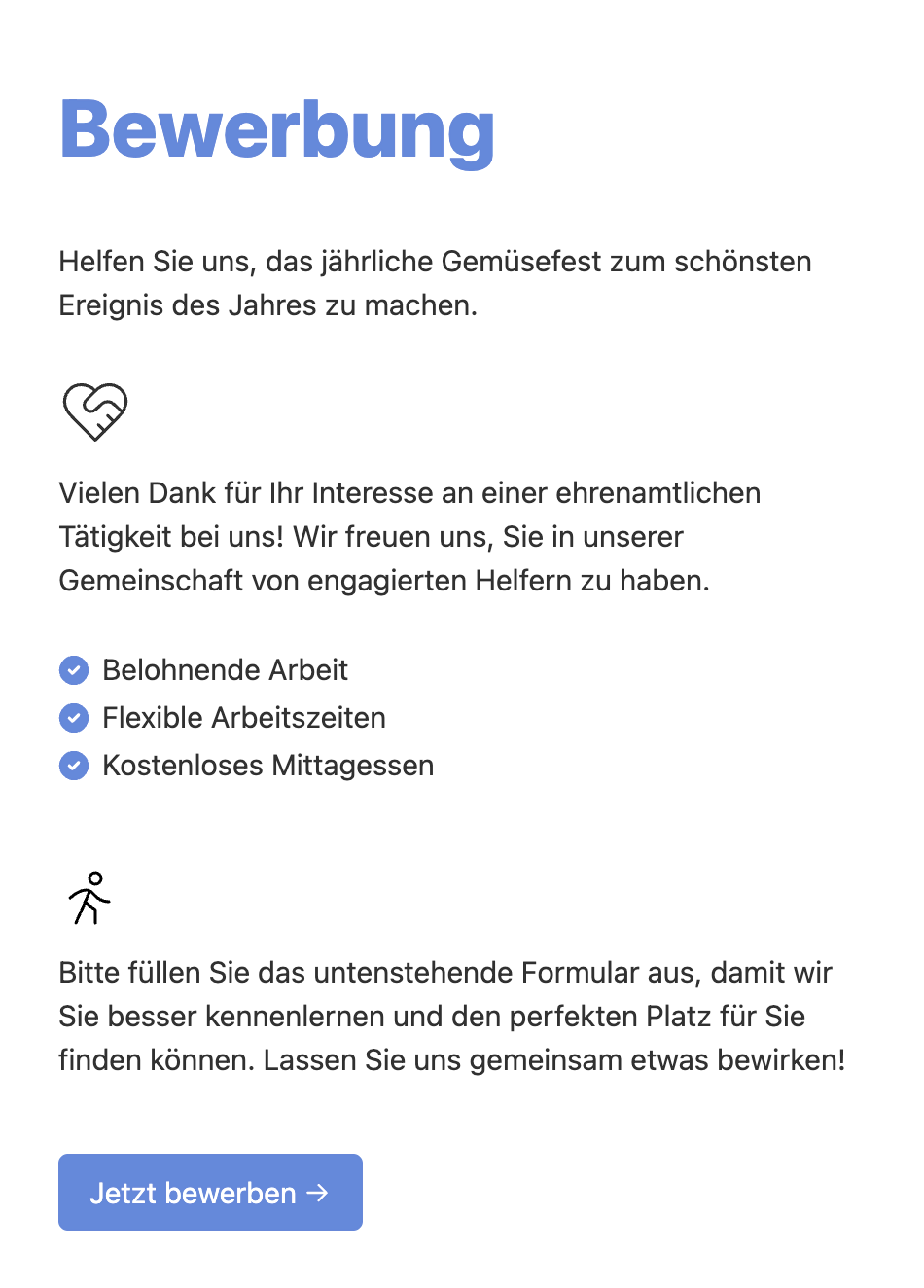
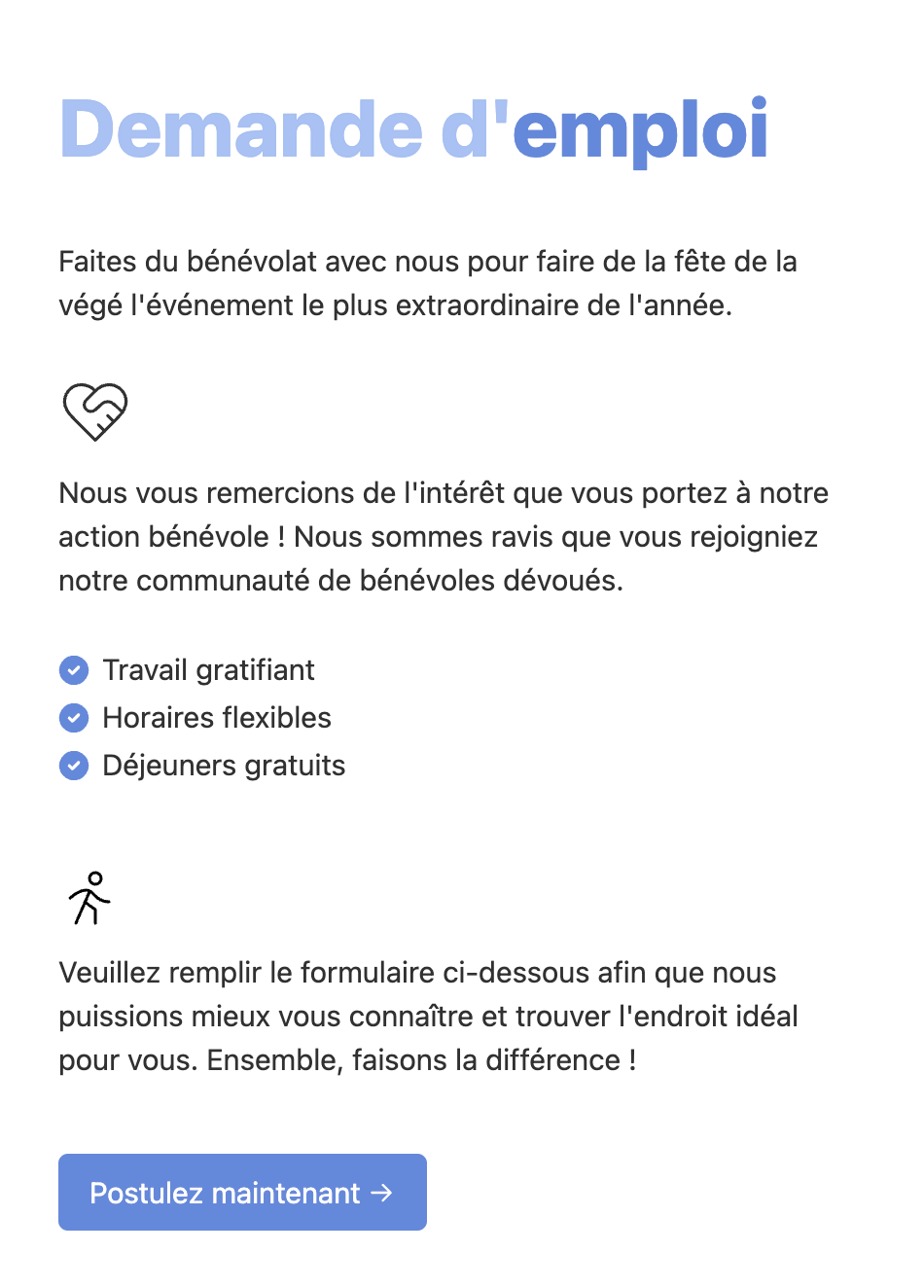
Default language
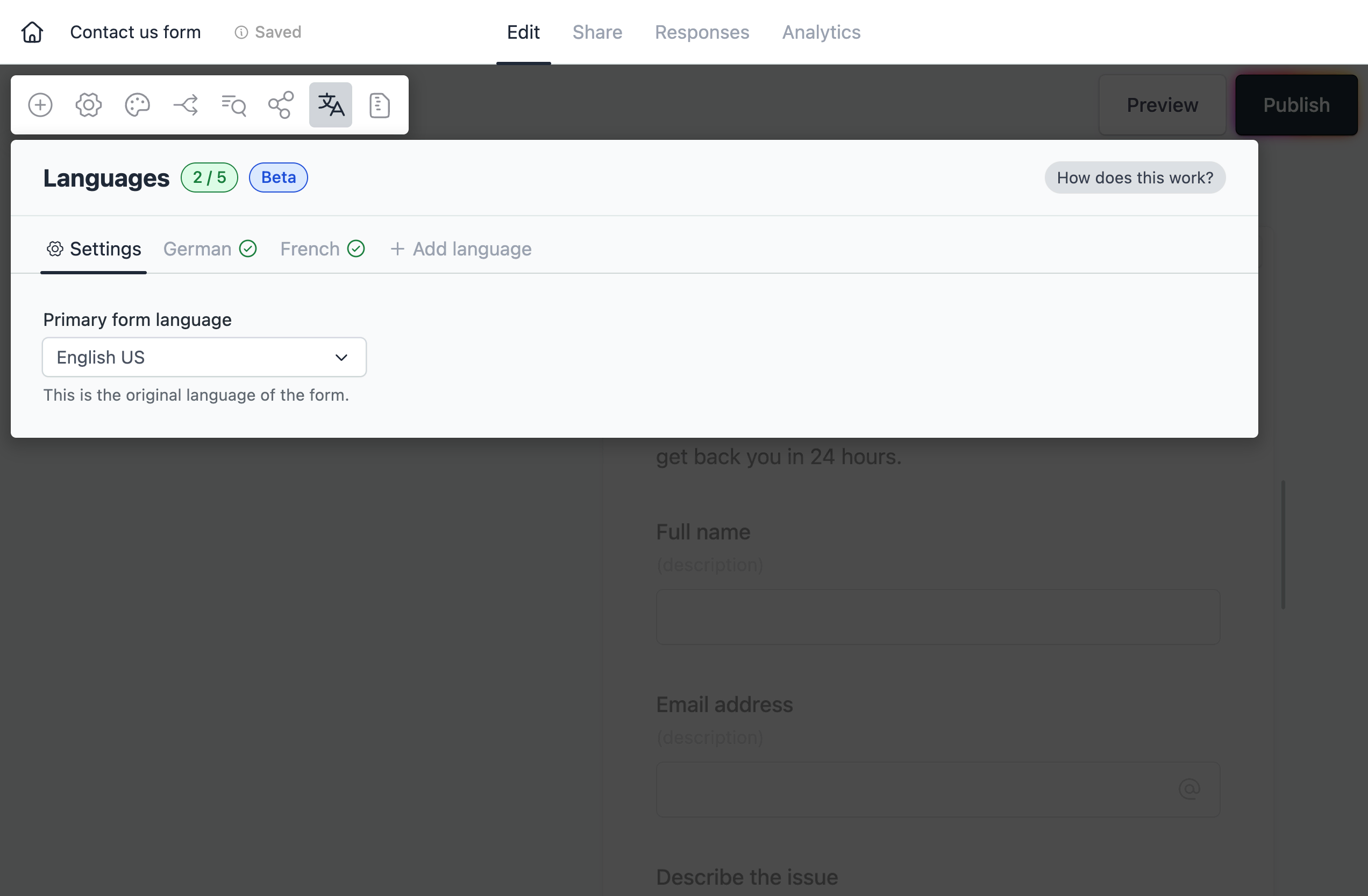
On the top-left corner of the form editor, click on Languages. This will open the form languages panel right below.
Here you can choose a default language. Your default language is the base language in which you initially build your form. Formcrafts will automatically translate error messages for this language and adjust the form’s direction (left-to-right or right-to-left) accordingly.
Adding languages
You can use the + Add language button to create a new translation for your form. Here’s an example of the German language tab:
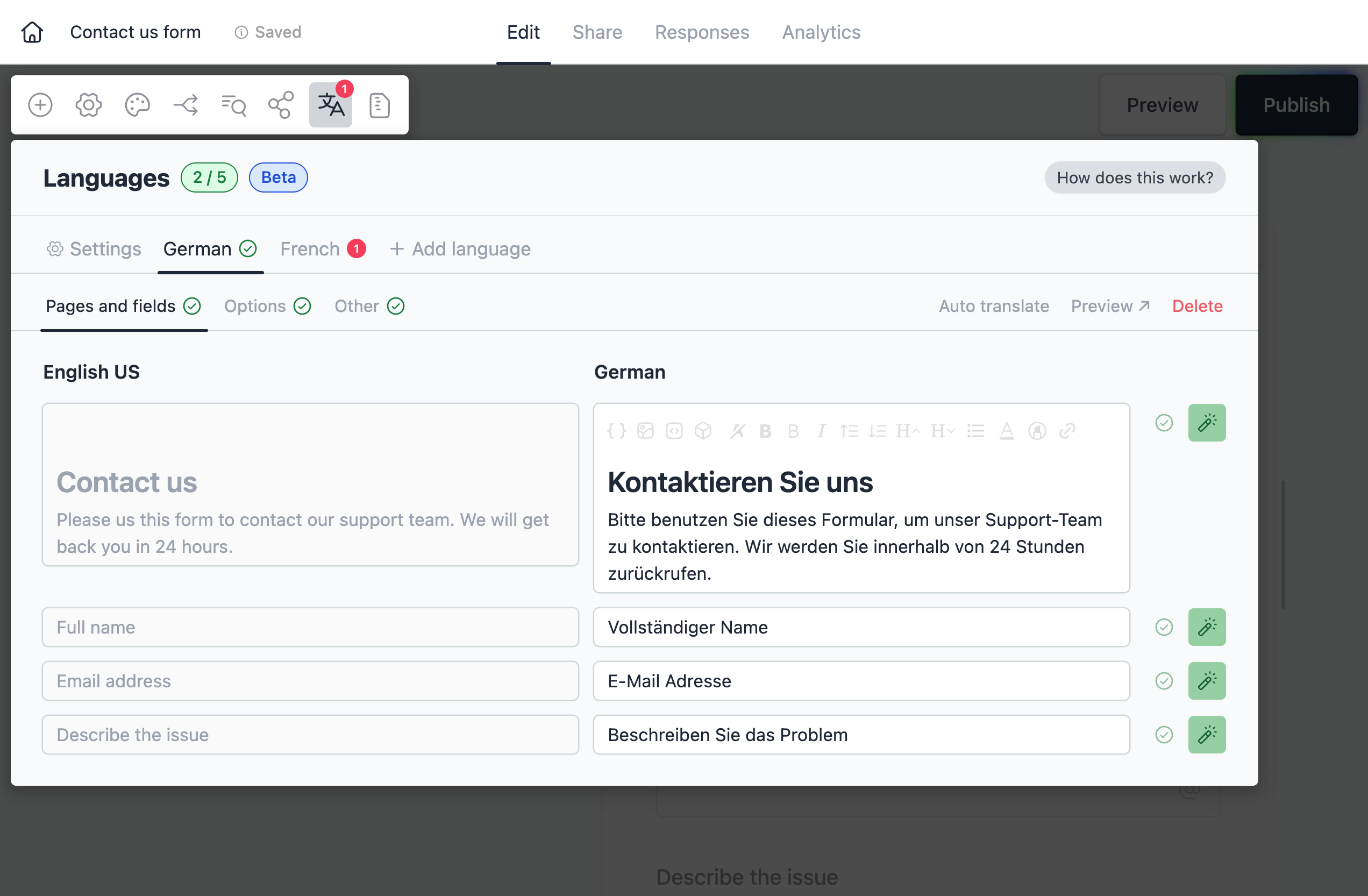
Most languages also support Auto translate, which can help you get started with the translation by automatically translating the form items.
You can also use the Update button to auto-translate a specific item.
Keeping translations in sync
What happens when you edit a form label, or add another form field? Whenever you change a form label or add a new field, Formcrafts flags any existing translations for that item as invalid. This helps ensure you update translations when your form evolves.
Here’s an example. Let’s say our form is fully translated. We then change the label of a field from First name to Full name. This item will be marked as invalid in all languages, allowing you to update the translations.
Next to each language name you can view the number of invalid items. Here’s an example of the French language tab with an invalid translation:

Here you can click on the Update button to auto-translate the item. You can also manually update the text, and click on Mark as valid.
Displaying the correct language
Which language is shown to your users? The answer depends on how the form is shared.
Form link
When a user visits the form link, Formcrafts automatically detects the user’s browser language and displays the form in that language (if available). If the form is not available in the user’s browser language, it will be displayed in the default language.
You can force a certain language by adding the ?lang= parameter to the form URL. For example, to display the form in French, use ?lang=fr.
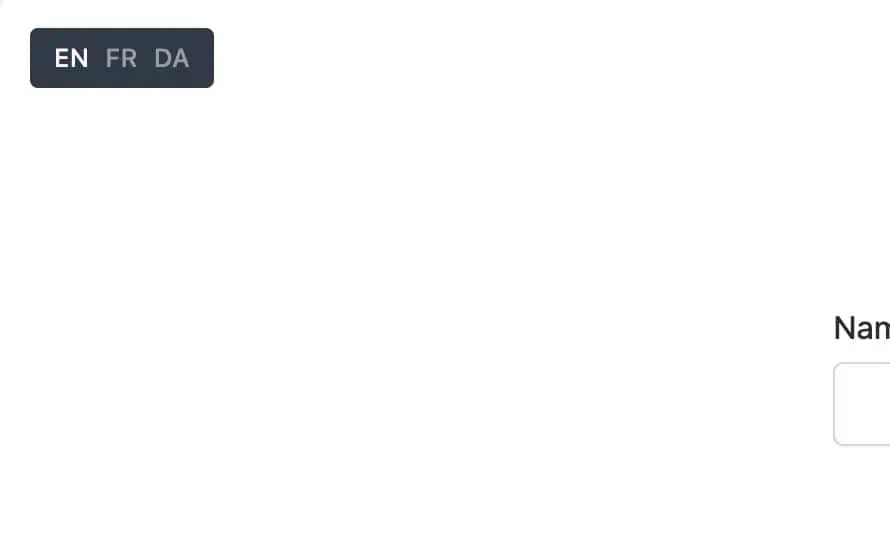
Additionally, users can manually switch languages using the language switcher.
Embed on a page (using embed code)
When you embed a form using the standard embed code, Formcrafts automatically detects the language of the hosting page. If a translation for that language exists, the form will be displayed accordingly; otherwise, it defaults to the form’s primary language.
For instance, imagine a multilingual help center with pages in English, German, and French. By using the same embed code across all pages, the form will seamlessly match the language of each page—showing German on the German page, English on the English page, and so on—provided those translations are available.
Embed on a page (using JavaScript SDK)
When you create an inline form using the JavaScript SDK, you can specify the language using the lang parameter. For example, to display the form in French:
const myInlineForm = createInlineForm({
	form: "form_key", // Your form key
	target: document.getElementById("element_id"), // Target element
	lang: "fr", // Language code
	seamless: true, // Removes form border, shadow, and padding
	width: 500, // Max width of the form
	redirectWithin: true, // Keep redirect within form frame
	values: {
		field1: "Jack Smith",
		field2: ["Chocolate", "Vanilla"]
	} // Prefill values
});
Read more about the embed library.